FAQs
What types of research does Bellberry review?
Bellberry reviews a broad range of human research, including clinical drug and device trials, social and behavioural studies, health services research, public health studies, and AI and digital health research.
We also offer specialist review through our Animal Ethics Committee (AEC) and Consumer and Community Advisory Panel (CCAP). If you’re unsure whether your study type is covered, contact us.
Do all research studies need to be reviewed by a HREC?
Research proposals involving human participants require Human Research Ethics Committee (HREC) review to ensure they meet ethical standards and guidelines, as set out in the National Statement on Ethical Conduct in Human Research.
But not all projects require full HREC review — some low-risk or quality assurance activities may follow other pathways or be exempt. See our Review Pathways guide for details.
How do I register for eProtocol?
You need to complete the online registration form to register for eProtocol. Please see our Registrations Guidance for further information on how to complete this form.
Do I need to submit to Bellberry specifically, or can I choose any HREC?
In most cases, you can submit your research to any NHMRC-certified Human Research Ethics Committee (HREC). However, some institutions have agreements with specific HRECs, so it’s worth checking with your institution first. If you have flexibility, Bellberry’s weekly meetings and average 21-working-day turnaround make us one of the most efficient options in Australia.
Is AEC membership paid or voluntary?
AEC members are remunerated for their time and contribution.
Is CCAP membership paid or voluntary?
CCAP members are remunerated for their time and contribution.
Do I need any formal qualifications to join?
Not necessarily. CCAP membership is built around lived experience, rather than formal qualifications. If you, or someone close to you, has experience as a patient, carer or family member affected by a health issue, that’s the most important thing you bring to the panel.
What support will I get as a new CCAP member?
Bellberry provides an induction program for all new members, along with ongoing mentoring and training, so you’ll never be reviewing a study without support.
What does panel membership involve?
You’ll review study protocols and documents from a participant’s point of view, considering whether the research is fair, practical and designed with people like you in mind. You’ll provide feedback before studies go to full ethical review.
Is HREC membership paid or voluntary?
Membership is a paid role, and members are remunerated for their time and contribution.
How much time does it take?
Meetings will be held dependent on the number of applications received – we expect meetings to be held monthly initially.
Who is eligible to become a HREC member?
Bellberry welcomes people from a range of backgrounds, including researchers, clinicians, legal professionals, pastoral or community representatives, and lay members. See the ‘Who can become a member’ section above for the full requirements.
Where can I find the HREC and Standard Indemnity templates?
The Medicines Australia Standard Form of Indemnity and HREC Review Only Form of Indemnity can both be found at the Medicines Australia website along with the Clinical Trials Compensation Guidelines.
Bellberry does not require the submission of Standard Indemnities — information on Bellberry’s requirements for HREC Only Indemnities can be found in Insurance and Indemnities.
Can I submit a multi-site study to Bellberry?
Yes. Bellberry offers single ethical review for multi-centre studies, reducing duplication and providing one consistent approval across all sites.
What fees apply to my type of study?
Our fees vary depending on the type and complexity of your study. See Our HREC Fees for a full breakdown, or contact us to discuss your specific situation.
How do I submit an application?
All applications are submitted through our eProtocol online system. You’ll need to register as an eProtocol user before you can begin. Once registered, complete the application form and upload all relevant study documentation. See How to Apply for full guidance and video tutorials.
What documents should I prepare before submitting my application?
Documents required depend on the type of study you are submitting. Please see our Submission Requirements Checklist for a comprehensive list of possible documents required for review.
How often do Bellberry HRECs meet?
Meetings are held weekly, on Wednesday evenings. How often you’re asked to attend depends on your membership category and availability — some scientific members attend 3 to 4 meetings a year, while others attend 12 to 20. Non-scientific members may attend regularly or occasionally, depending on availability.
Can I attend HREC meetings remotely?
All HREC meeting are held virtually via Microsoft Teams. HREC members are required to have a computer with a good internet connection.
When do I receive HREC meeting materials?
Proposals and supporting materials are distributed 12 calendar days before each meeting, giving you time to review everything in advance.
What are my responsibilities after a HREC meeting?
Any post-meeting or ongoing items should be actioned within 48 hours. Outcomes and any follow-up are managed through Bellberry’s secure online portal, so everything stays in one place.
What does Bellberry do?
Bellberry’s Human Research Ethics Committees provide independent ethical oversight for human research across Australia.
We don’t run studies or recruit participants. Instead, our committees review research proposals and clinical trials to ensure they meet national ethical standards and prioritise participant safety.
Who should I contact if I have a problem during my study?
If you experience any problems during your clinical trial, contact your study team. They are there to support you, answer your questions, and help ensure your safety throughout the study.
- Study doctor — Your main medical contact for any health concerns, side effects, or questions about the study treatment.
- Study coordinator or research nurse — Often your first point of contact for practical questions, study-related concerns, or reporting issues.
- 24/7 or after-hours contact number — Most clinical trials provide an emergency contact number on your Participant Information and Consent Form (PICF). Use this if you need assistance outside normal business hours.
In urgent situations: If you have a serious or life-threatening medical issue, call emergency services immediately rather than waiting to contact the study team.
For non-medical concerns: If you have a complaint about the study or concerns about your rights as a participant, contact the Human Research Ethics Committee (HREC) using the details provided on your Participant Information and Consent Form (PICF). For more information, view our Complaints page.
What if I have a reaction to a study drug?
If you experience a reaction to a study drug, contact your clinical trial team (study doctor, study coordinator or research nurse) immediately using the information on your Participant Information and Consent Form (PICF). They can assess your symptoms, provide advice, and ensure you receive appropriate care.
In an emergency
If you experience a serious reaction — such as difficulty breathing, chest pain, severe swelling or rash, or loss of consciousness — call emergency services immediately rather than waiting to contact the study team.
It is important to report any side effects or reactions, even if they seem minor, as this information helps researchers monitor the safety of the study treatment.
What happens if I want to withdraw from my study?
You can withdraw from a clinical trial at any time, for any reason, without penalty. Taking part in a clinical trial is entirely voluntary, and you do not have to explain your decision if you choose to leave.
Let your study team know
Tell your study doctor, study coordinator, or research nurse that you wish to withdraw. While they may ask why you are leaving, giving an answer is optional; you are not required to provide a reason.
Your participation will end
You will stop receiving the study treatment and no longer need to attend study visits. In some cases, the study team may ask if you are willing to come in for a final safety assessment.
Your safety remains a priority
Depending on the study and your health situation, the study doctor may recommend follow-up care or monitoring to help ensure a safe transition out of the trial, especially if stopping suddenly could affect your health.
Information already collected may still be used
Data collected before you withdraw will usually remain part of the study and may be used in the final analysis, as outlined in your Participant Information and Consent Form (PICF). Some studies may ask for permission to continue collecting information from your medical records, but you can choose whether or not to allow this.
Your regular healthcare will not be affected
Choosing to withdraw from a study should not affect your access to regular medical care or your relationship with your healthcare providers.
How is my personal information protected?
Your privacy is taken seriously when you participate in a clinical trial. Researchers must follow strict laws, ethical guidelines, and security procedures to protect your personal information.
Your information is kept confidential
Your personal details, such as your name, address and contact information, are kept confidential. In most studies, you are identified by a participant number or study code rather than your name.
Access is restricted
Only authorised individuals can access your identifiable information, including:
- The study doctor and research team
- Human Research Ethics Committees (HRECs), if required for monitoring
- Regulatory authorities, if required for oversight or auditing
All are required to comply with strict privacy and confidentiality requirements.
Your data is stored securely
Study information is stored in secure systems, such as locked filing cabinets or password-protected databases. These systems are designed to prevent unauthorised access, loss, or misuse of your information.
Study results do not identify you
When study findings are shared or published, your personal information is removed. The results are reported using de-identified, anonymised data, so you cannot be personally identified.
Legal and ethical protections apply
Clinical trials must comply with privacy laws and ethical guidelines. In Australia, this includes the Privacy Act and national health research guidelines. All clinical trials must also be reviewed and approved by a Human Research Ethics Committee (HREC), which helps ensure your rights, safety, and privacy are protected.
You will be informed before you consent
Before joining a study, you will receive a Participant Information and Consent Form (PICF) explaining:
- What information will be collected
- How it will be used and stored
- Who it may be shared with
You are encouraged to ask questions and make sure you understand this information before deciding whether to participate.
When I register for eProtocol, what should my User ID be?
When registering for eProtocol for the first time, you’ll be asked to create a user ID. We recommend using your surname followed by your first name initial — for example, SmithJ. See our Registrations Guidance for more information.
When are applications due?
Applications can be submitted via eProtocol at anytime and meetings are held weekly on Wednesday evening. Studies being submitted for HREC review have a weekly submission cutoff of Wednesday at 5pm (ACST). A complete application will generally be considered at an HREC meeting on the Wednesday two weeks following the submission cutoff.
How do I request an amendment to an approved study?
Amendments to approved studies are submitted via eProtocol using the amendment form. Please see Amending Approved Research for further guidance.
Who can I contact if I need assistance during the application process?
If you need any help during the application process please email bellberry@bellberry.com.au or contact our team on 08 83613222. We are always happy to help.
Participant Identification Card Guidance
Milestone Applications
Annual/Progress Reports
A site-specific Progress Report form must be completed by each site and included in the Milestone Annual/Progress Report submission in REGIS.
Lead Site in REGIS:
- Request each site included in the REGIS application to complete and provide the Progress Report. If there are any issues, the site/s can email the form to the EPCT team at epct@bellberry.com.au.
- Complete the Annual/Progress Report in REGIS and upload the Progress Report forms for all sites.
Multi-centre site in REGIS with lead site in REGIS:
- Complete the Progress Report form for your site and provide it to the site that will be submitting the milestone in REGIS. If there are any issues, the form can be emailed to the EPCT team at epct@bellberry.com.au.
Multi-centre site in REGIS with lead site in eProtocol:
- Where the lead site is in eProtocol rather than REGIS the lead site in eProtocol will only submit their own site-specific Final Report in eProtocol.
- One of the sites in the REGIS application will need to be the submitting site and submit the report on behalf of themselves and any other REGIS sites following the instructions above.
Ethics approval expiry
Ethics approval will expire on the day of the approval end date. The Annual/Progress Report in REGIS should be submitted with the Progress Report form prior to the ethics approval expiry date to allow time for review and approval.
If there are any issues with submitting the Annual/Progress report in REGIS prior to the ethics expiry date, please contact the EPCT team at EPCT@bellberry.com.au.
If ethics approval expires, researchers must ensure:
- All research activities stop.
- New enrolment of participants does not occur.
- If the site has participant visits scheduled, the HREC will decide if it is in the best interests of individual participants to continue participating due to an over-riding safety concern or ethical issue.
- The site must outline what participant visits and other study-related conduct have occurred in the period between the report being due and the submission of the notification.
Final Milestone Reports
In addition to the REGIS Milestone Final Report submission, a site-specific Final Report form must be completed by each closing site and included in the submission.
Lead site in REGIS:
- Where all sites in the REGIS application are closing out:
- All sites will need to complete the Final Report form and provide to the submitting site, if there are any issues the report can be sent via email to the EPCT team at epct@bellberry.com.au
- The submitting site will need to submit the Milestone Final Report in REGIS and upload the Final Report for each site.
- Where some but not all sites in the REGIS application are closing out:
- The closing site/s will need to complete the Final Report form and provide to the submitting site, if there are any issues the report can be sent via email to the EPCT team at epct@bellberry.com.au
-
- The submitting site will need to submit a General Amendment notifying the HREC of the closing sites and upload the Final Report forms for each closing site.
Lead site in eProtocol:
- Where the lead site is in eProtocol rather than REGIS the lead site will only submit their own site-specific Final Report in eProtocol.
- One of the sites in the REGIS application will need to be the submitting site and submit the Milestone Final Report on behalf of all closing REGIS sites following the instructions above.
Guidance
Please see the below link to the Bellberry progress and final report guidance document:
Progress and Final Reports
For information on how to submit a Milestone in REGIS, refer to the below QRG:
Submitting Annual Progress or Final Report (Milestone)
For further REGIS guidance, please refer to the following link to the Quick Reference Guide web page: https://regis.health.nsw.gov.au/how-to/
Contacts
For further information regarding applications please contact: epct@bellberry.com.au
Observer Process
Under the EPCT Framework Senior Executives and/or Research Directors from NSW PHOs that are included as part of an application will be invited to attend the HREC meeting during the period the application will be considered by the Committee at a HREC meeting. The nominated Observer can nominate to attend in person or remotely.
Investigator Initiated Research
Non-commercially sponsored, investigator-initiated research applications submitted by NSW PHOs under the NSW EPCT framework may be eligible for a Bellberry fee reduction and NSW OHMR HREC fee subsidy support. Please contact the Bellberry EPCT team to discuss.
Multi-centre Applications
Multi-centre EPCT applications, which will include a NSW PHO, can be reviewed by Bellberry under the NSW Early Phase Clinical Trials (EPCT) Framework with applications made via the following submission pathways:
1. Lead submission is from a NSW PHO – the lead application must be made via REGIS. Private institutions may be included as part of the REGIS application, either in the initial submission or via an amendment, or an application can be submitted directly to Bellberry via our eProtocol platform.
2. Lead submission is from a private institution – where this application has been received via eProtocol, application(s) for NSW PHO’s can be made via eProtocol or REGIS.
Please note the following guidance for submissions made via;
- eProtocol – Bellberry requires an application from each site as part of a multi-centre review.
- REGIS – the HREA need only include a minimum data set and may reference information contained within the Protocol, IB or lead site application. Site specific information such as the site, investigator and study staff information, participant recruitment and consent practices, participant populations, and data access and management considerations should be detailed within the HREA.
Please note the guidance for the following HREA registration and application questions:
Project Registration A1. Has the project ever received ethics approval or has an ethics application from ever been submitted to an NHMRC registered HREC, for the project? Answer NO so that a HREA application is generated.
HREA Q1.13 Has this research project had prior ethics review? Answer YES. Provide the application ID for the lead site application.
In either circumstance, a lead site can submit amendments or notifications to Bellberry on behalf of all approved sites during the lifecycle of the study.
Please note: each site is required to provide a site-specific annual Progress (Milestone) report. When applicable, such as when the lead site submission is via a platform other than eProtocol, the lead site can submit a collection of additional site Progress (Milestone) reports. Following site closeout, each site is required to provide a site-specific Final Report. Please refer to Progress and final reports and Progress report (eProtocol questions) for further information.
Applications
New applications on behalf of NSW PHOs, which have not previously undergone a Bellberry review, must be submitted via REGIS.
In addition to Bellberry’s submission guidance, please review and include the information in the REGIS application checklist or include the completed checklist with your application.
Can I submit an electronic indemnity listing all sites even if those sites are yet to submit to Bellberry?
Please only submit electronic indemnities listing sites that have applied or are due to apply in the coming days. Bellberry will not execute indemnities that list sites that have not applied eProtocol.
If the indemnity is on paper, Bellberry will strike through the sites that haven’t applied in eProtocol.
If the lead site was approved before the submission changes, do they need to submit anything when a new site is added?
The lead site only needs to choose a pathway. There may be some situations where updated documentation is required, but it should be rare.
For example, if they pick pathway 2, they do not need to send in site-specific clauses documents if we have already approved their site-specific PICF. Sites approved before the PICF pathways only need update the HREC with a site-specific clauses document if they are changing the wording from an already HREC approved site-specific PICF.
If the lead site chooses pathway 3, the only update required is if the Master PICF does not cover the requirements of the additional site that is being added. E.g. the radiation statement has two options, but the new additional site has different wording that isn’t already covered. The lead site would then need to submit an amendment with an update to the Master PICF. The amendment can come either before or after the additional site is approved. If it comes post-approval, the additional site will be delayed in creating its site-specific PICF. This is a matter for Sponsors and sites to work out what suits them best.
The lead site at the initial submission has chosen pathway 2. One of the additional sites submits a protocol amendment during the study and their documentation is aligned with pathway 3. They have now re-aligned the PICF pathway. Is that possible?
The HREC administration keeps a record of the lead site’s PICF pathway at the initial submission. If a site tries to change the pathway, the HREC administration will return the documentation, along with an explanation that it does not match the study pathway. The only exception to this would be when a single centre study on PICF pathway 1 has changed to a multi-centre study. The Sponsor needs to determine who is responsible for unpacking the PICF and moving the study to PICF pathway 2 or 3. In this case, the submitting site should also explain the change in the pathway to the HREC. Providing as much information as possible will help the administrator understand why the documentation change is being submitted.
There are 4 sites as part of a multi-centre study, and the lead site has chosen PICF pathway 2 and submitted the Master PICF + their site-specific clauses. All other sites have submitted their site-specific clauses prior to EC approval. EC has queries about Site 2 and Site 3’s site specific clauses document. Does this hold up the initial EC approval letter for the Lead Site and Site 4?
No. It only holds up the site/s in question. Suppose it is something minor that could be dealt with swiftly. In that case, we will encourage our team to rectify the issue so approval for all sites can occur on the same day. If it appears that is not likely, sites 1 & 4 would be approved. Then, sites 2&3 would be approved when they have resolved their issues. Sites 2&3 are then provided with any approval letters that have been issued for the other sites if there are documents on there that are relevant to them (e.g. protocol, IB, Master PICF).
Our Master PICFs can have optional wording in the body of the PICFs so sites can select the relevant statement for their site and delete the other e.g. 2 radiation statements. Which of the 2 options below is correct?
- Does not need to be listed in site-specific clauses document as the wording has been ethically approved in the Master PICF, so site deleting the not applicable section would be a known admin change.
- Copy and paste the deleted wording into the site-specific clauses template stating that it is not applicable and therefore deleted.
The correct answer is option 1.
Does the Master PICF version & date have to be referenced in the site-specific clauses document? This won’t be possible if the site-specific clauses document is submitted at the same time as the draft Bellberry Master PICF.
No, the site does not reference the version and date. The site only needs to reference which document their wording is going into (e.g. Master Main, Master Pregnancy).
If the lead has chosen pathway two, and each site has submitted a site-specific clauses document, if they never wish to change any ethical content in their site-specific PICF, we will never receive an update to that document for the rest of the study.
The clauses document is approved, and each time the Master is updated, they include their approved clauses in their site-specific version, which is approved via whatever mechanism they choose for their own site (e.g. Clin Trial Manager go-ahead, CRO sign off etc).
Does every participating site need to submit a site-specific clauses document, even if they have no changes to the Bellberry Master PICF? If every site must submit this document, even if there are no changes, hasn’t this process created another document for sites to complete rather than just submitting the Site Specific PICF?
Yes, if the lead selects pathway 2.
It is for the following reasons:
- The sites are submitting it to confirm they aren’t making changes.
- If there are ethical changes, then the RGO/other institutional representative has a point of reference that the HREC has reviewed the wording, and it is OK for inclusion. We hope that it can help with making the line clear between what is ethics and what is governance. Governance is then about adding administrative items (headers, footers, logos, local site complaints).
- The real value in the document is post-approval. If the site is not changing any site-specific content, they are free to create a site-specific PICF on the same day as the Master is approved. Historically, they may have created it, but they would then need to submit it to the HREC and await approval. In discussion with sites, we found our former approach caused issues when a Master PICF had urgent safety updates, and sites were then waiting for their site-specific PICFs to be approved post Master.
When we audit a study, if we find ethical changes to the site-specific PICF that were not submitted in the site-specific clauses document, we will bring it to the PI’s attention. We recognise there is no clauses document for historical studies, so we would go by the previously approved site-specific PICF.
Typically, we get sites to submit a radiation report from their local physicists that will contain their site-specific radiation wording for the PICF. Under the new set up, does Bellberry want the actual radiation report to still be submitted, or can sites just use the Site-Specific Clauses form for their site-specific radiation wording?
The Committee will want to see the radiation report (if above standard of care) and the wording from that report placed in the site-specific wording doc. The HREC notes the radiation report, whereas they approve the site-specific wording.
If the lead has already imbedded the radiation report wording of multiple sites into the Master PICF, then it would not need to be put in the site-specific doc.
Master and site specific PICF and other participant facing documents
New applications: The first submitting/lead site must consult PICF submission pathways to determine how the master study documentation will be submitted. There are now three submission pathways:
- Option 1 for single centre submission;
- Option 2 is a flexible submission pathway (which is the same as currently in place);
- Option 3 for where the initial submitting/lead site takes submission responsibility.
A question has been added to the application form asking the Principal Investigator to confirm which PICF pathway has been chosen for the submission. Only one pathway may be selected per study for review by a Bellberry HREC. Each additional site will need to align with the study’s nominated pathway, chosen by the first submitting/lead site.
Sites are no longer required to submit tracked and clean site-specific PICFs and other site-specific participant facing documentation to Bellberry. This change allows sites with research governance offices (or other formal institutional arrangements for reviewing site-specific documentation) to go ahead without the need for further HREC review. Sites that do not have a formal institutional arrangement will be responsible for developing a local procedure for document management.
The PICF submission pathway will determine what documentation is required from each site. Major site-based changes (e.g. radiation, pregnancy, reimbursement) to the PICF/participant facing documentation may be written in the master document as placeholders, or by the completion of Site-specific clauses. The content will be reviewed by the HREC in the format determined by the PICF pathway. Minor administrative changes will be the responsibility of the site and do not need to be submitted to Bellberry. These include adding the site name, Principal Investigator details, amending footers, formatting, and other typographical errors.
For current/ongoing studies: Most studies will already be consistent with one of the PICF pathways. If a site has submitted a site-specific PICF/document to Bellberry, the HREC will have already approved the site-specific content and listed it on an approval letter. If the master document is updated, the site can continue to imbed previously approved clauses into the new site-specific PICF/document without the need for further HREC review. If the site wishes to change a clause, the site must submit an amendment using the Site-specific clauses template.
Sponsor submissions
Sponsor representatives are able to help build the applications in eProtocol. See registration requirements under Submission requirements and responsibilities
Submission requirements
As a reminder, earlier this year, Bellberry removed the requirement to submit the following documents for which the institution is responsible:
- Insurance certificates
- Standard indemnities
- Site approval forms*
- Protocol signature pages
- Professional indemnities
These are still required to be in place, and available at the site.
*Site approval forms, in this context, refer to the procedure of form put in place by the Institution or Organisation conducting the research. The Bellberry site approval form has been retired.
A list of submission requirements is available under Bellberry Applications Submission requirements checklist.
HREC Indemnities
Bellberry accepts both electronic and hard copy HREC Only indemnities. If an indemnity is to be sent via an electronic platform such as DocuSign or AdobeSign, please do not complete any fields for the Bellberry signatory.
Please send any electronic HREC Only Indemnities to bellberry@bellberry.com.au. If your processes require it to be sent to an individual, please also copy to bellberry@bellberry.com.au.
Bellberry does not require the submission of Standard Indemnities. Researchers and Sponsors can find information on Bellberry’s requirements for HREC Only Indemnities in Insurance and indemnities
Version control and document naming conventions
For clarity, Bellberry requests files to contain the title, version and date of the document. Please refer to Version control and document naming conventions for further information.
Progress reports
Minor changes have been made to the progress report form to incorporate the need for submissions to include an update on any conflict of interest changes for the research team, and for a comment on compliance with any: governance approvals; submission of amendments; safety reporting; annual progress reporting; notification to the HREC of regulatory audits; appropriate use of data; caveats placed on the approval; statutory and licensing obligations. See Progress reports (eProtocol questions).
Serious breaches
Protocol deviations and violations do not need to be reported to Bellberry HREC. The PVR form has been updated to reflect the NHRMC’s serious breach questions. Sites may complete these questions, or upload Serious breaches report form – sponsor or Serious breaches report form – third party, as applicable.
Please note, the acknowledgement letter will code the item as ‘PVR’; this is system-generated and cannot be altered.
Amendments and safety reporting
If an amendment or safety report in a multi-centre study relates to core study documentation (such as the protocol, master PICF or investigator brochure, DSUR, ASR), the submission will be reviewed on behalf of all Bellberry approved sites. In the event the submission does not apply to all of these sites, the submitting site must provide an explanation. Please refer to Amendment pathways flowchart for further information.
Additional sites approved post initial approval
When an additional site is approved after the initial study’s approval, Bellberry administration will upload all previous approval letters to eProtocol page 7 of the additional site’s application. The additional site is responsible for checking that the approved documents match the documents on file. If the site has any documents that do not match those approved (e.g. they have a more recent version of the protocol), the site is responsible for contacting the sponsor to determine which of the approved sites will be responsible for submitting an amendment.
Please refer to HREC process flowchart for further information.
Initial applications and reviews
Each site is responsible for submitting an initial application. The first submitting/lead site is responsible for submitting all core study documents. Additional sites will not need to submit any study documentation that has been submitted by the first submitting/lead site, irrespective of when the additional site joins. However, additional sites are responsible for submitting documents that have not been submitted by the first submitting/lead site (e.g. documents pertaining to the additional site: CV, social media plan, advertising, etc.). Please refer to Submission requirements for further information.
Additional site submissions will be considered by the Chair/reviewers as the first submitting/lead site enters cycle comments, post-HREC review. When the first submitting/ lead site is ready for approval, any additional sites that have fulfilled the HREC’s requirements will be included on the first submitting/lead site approval letter.
Searching for a historical submission
From the ‘investigator’ home page, Principal Investigators will be able to view a complete list of submissions for projects under their responsibility. Applications will be grouped into ‘applications (in preparation/ submitted), ‘approved applications’, or ‘non-active applications’.
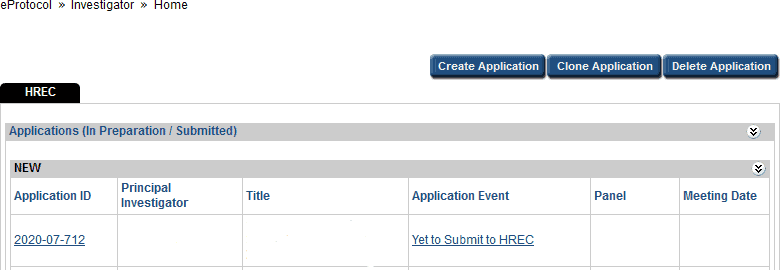
From the ‘investigator’ home page, holding Ctrl+F will display a search bar. Entering an identifier such as the HREC application ID into the search bar will highlight items on the page that match the search criteria.
From time to time a submission may not be visible from the ‘investigator’ home page. This may occur when a new Principal Investigator has taken over responsibility for a project, or when a Co-Investigator/ nominated contact completes a submission on behalf of an investigator.
To access a submission that is not visible on the eProtocol landing page:
- Hover over the eProtocol tab in the top left-hand corner of the page
- Move the mouse to hover over ‘investigator’. A list of options will Click ‘search protocol’.
- Enter the relevant HREC application ID the search box. Click ‘search’.
If uncertain of the specific HREC application ID, type a different identifier into one of the search fields. For example, entering the Principal Investigator’s name into the search box and clicking ‘search’ will display a complete list of all submissions made by, or on behalf of, that investigator. Alternatively, selecting the organisation name and clicking ‘search’ will display a complete list of all submissions for projects occurring at that site.
A combination of search fields may be used, such as:
- study title
- form type (amendment, progress report, protocol violation report)
- organisation name
- committee (panel)
- meeting date
What about deadlines, ethics expiries etc?
We recognise that the sector is enormously busy at present and expect that deadlines will come under pressure. Bellberry will be automatically extending ethics expiry dates to take into account the current situation.
Attaching videos into eProtocol
Videos cannot be uploaded directly into an eProtocol application; however, they can be embedded into a document which can then be attached to page 7.
The document should be named as you want the video to appear on the approval letter.
To embed a video into MS Word, PowerPoint or Excel, please refer to the instructions below:
- On the Insert menu, click Object, and then click the Create from File tab
- Click Browse and locate the movie (video clip or sound wave) you want to insert
- Select Movie (video clip or sound wave)
- Click insert
- To play media clip, double-click its icon
- Save using the preferred file
Troubleshooting and FAQ
Avoid using your browser’s BACK button
This will avoid taking you out of the system. Instead, use the menus and links within the application to navigate.
Save Frequently
eProtocol will time out after 60 minutes of inactivity. Only actions which cause the page to refresh or reload (such as saving or navigating to a new section) are indications to the system that your session is active.
Be patient
Some processes can take a short time to run. Although data is loading, your browser may not indicate activity.
Sign out when done
Always click “Sign Out” and shut down your browser completely (close all browser windows) when you are finished using eProtocol. This will not only help keep your information secure but will also release any edit locks you may have had on protocols and allow your colleagues on the project to open the protocols in edit mode.
Changing a Password
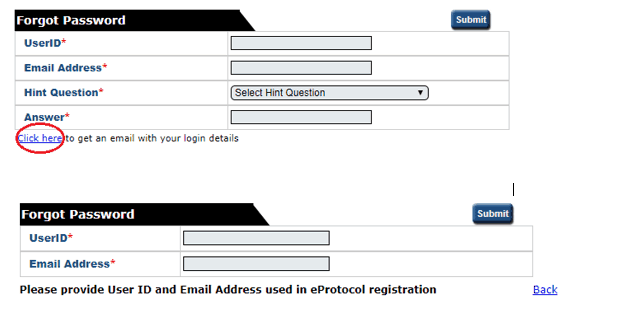
If you wish to change your password, click on the ‘Change Password’ button on the top right-hand corner of the Screen (next to the Sign Out button). Once on this page, if you cannot remember your hint question, follow the ‘click here’ link. This will take you to a second ‘forgot password’ page where you must enter your UserID and email address. Follow the steps outlined in the email generated by the system.
I can’t see my approved applications
Your approved applications will appear on your eProtocol home page (the page you see when you first log in) in the section labelled ‘applications (approved)’. This section should appear towards the middle of your page. You may need to click on the button located on the right-side of the section header to expand this section.
I can’t find the application I need to amend
Please refer to the instructions for ‘creating an amendment’ if you do not see an application listed in your applications (approved) section, it may be that you were not listed as personnel on the study.
The option to ‘Start Amendment’ is not available; it appears grey
You may not have EDIT access to this application. Select “open in view mode” and click on the left-hand menu option ‘personnel info’. Only those people listed in the first four roles (principal investigator, co-investigator, nominated contacts) have access to edit the study/application.
An amendment or progress report may have already been started or is in-process for this application. Check on your home page in the applications (in-preparation/submitted) section to see if the application is listed there.
I am trying to respond to HREC comments, but it appears as if there are none.
You might be confusing the HREC Return Notes item in the left-hand side of the application form with the HREC Comments page, which is used during the HRECs review cycle.
If you are attempting to access comments from the HREC for an application that has already been assigned to a meeting date, please see the ‘Post HREC meeting & application decision’ instructions on how to respond to HREC comments. If your application was returned, please see instructions for ‘Returned applications’.
Access to eProtocol
Once logged in to eProtocol, you will be able to create a new application, and to view and edit any applications on which you have been listed in the Personnel Information section. You will only have access to edit those studies/applications on which you are listed as either:
- Principal Investigator
- Co-Investigator
- Nominated Contact
If you are a new Co-Investigator or Nominated Contact for an existing study, you will need to ask one of the existing study personnel listed on the Personnel Information page of the Application to create and submit an Amendment in eProtocol to add your details. Following approval of that Amendment you will then have view and edit access for the specific study. Refer to the Amendments section of this guide for details about how to do this.
If you are added during a study, you will not be able to access previous versions of documents. The PI however will be able to (unless they have taken over from another PI).
Creating a final report
Home> Approved applications> Application ID> Final report
A pop-up window will open. Within this window select ‘final report’ and click OK
If the final report form does not open when you click OK, then you have pop-up blocking software on in your browser. Even if you believe you have allowed pop-ups, there may be additional toolbars, that are blocking your pop-ups.
Once this form is acknowledged by the Committee the study will be closed in eProtocol, and no further submissions can be made. The application will be able to be viewed in the Non-Active Applications section on the home page
Once completed click SUBMIT FORM
Creating a progress report
Home> Approved applications> Application ID> Progress report
A pop-up window will open. Within this window select ‘progress report’ and click OK
If a progress report form does not open when you click OK, then you have pop-up blocking software on in your browser. Even if you believe you have allowed pop-ups, there may be additional toolbars, that are blocking your pop-ups.
Alternatively, if this option is still not available, then an amendment submission may be active. Check the ‘Applications (In-preparation/Submitted)’ section to see if the study is listed there. Please note that once the submission of an amendment has occurred, you will not be able to start a progress report application until the amendment has been reviewed and approved. If the ethics expiration date is near, please complete a progress report before creating an amendment. Once processed, you will then be able to submit an amendment
Please attach any documents at the bottom of the form.
Once completed click SUBMIT FORM
Creating a protocol violation/serious breach
Home> Approved applications> Application ID> Protocol violation
A pop-up window will open. Within this window select ‘protocol violation’ and click OK
If a protocol violation form does not open when you click OK, then you have pop-up blocking software on in your browser. Even if you believe you have allowed pop-ups, there may be additional toolbars, that are blocking your pop-ups.
Please attach any documents at the bottom of the form
Once completed click SUBMIT FORM
Creating safety submissions
Creating an adverse event/safety report form
Home> Approved applications> Application ID> Start adverse event/safety report form
A pop-up window will open. Within this window select ‘adverse event/safety reporting’ and click OK
If an adverse event/safety report form does not open when you click OK, then you have pop-up blocking software on in your browser. Even if you believe you have allowed pop-ups, there may be additional toolbars, that are blocking your pop-ups.
On the form select either:
- Individual Event
OR
- Summary Report
For an Individual Event, select section 1 and complete the report as required. Ensure that all questions are answered including the details of the event and attach relevant documents.
For Summary reporting, select 2 and attach relevant documents.
Once completed click SUBMIT FORM
Creating an amendment
Creating an amendment
Home> Approved applications> Application ID> Amendment
A pop-up window will open. Within this window select ‘start amendment’ and click OK
If an amendment form does not open when you click OK, then you have pop-up blocking software on in your browser. Even if you believe you have allowed pop-ups, there may be additional toolbars, that are blocking your pop-ups.
Alternatively, if this option is still not available, then an amendment or a progress report/ submission may be active. Check the ‘Applications (In-preparation/Submitted)’ section to see if the study is listed there. Please note that once the submission of an amendment has occurred, you will not be able to start a progress report application until the amendment has been reviewed and approved. If the ethics expiration date is near, please complete a progress report before creating an amendment. Once processed, you will then be able to submit an amendment.
Please attach documents at the bottom of the amendment form.
Once completed click SUBMIT FORM
Post HREC meeting application and decision
Printing an application
You can generate an Adobe pdf file of your application form that can be printed or saved on your computer.
- In the left-hand menu of the application form, click on the Print View option
A small window will open:
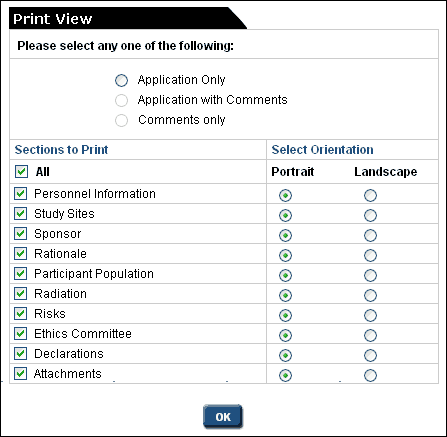
- Select an option, sections and their orientation, and click OK
- The Adobe pdf file will be created and will open automatically
- You may save it to your computer by clicking File, then Save as located in the upper left-hand corner of the window
If you are having difficulty with this function your Windows software may be blocking it. If this is the case, please go to the application page and use the keyboard short cut ‘Ctrl P’ to print individual pages.
Returned applications
Returned Applications
Sometimes it is necessary to return an application. Return advice will be communicated by email to the contacts on the application. The ‘Application Status’ displayed on your home page will be changed to ‘Submission Returned’.
If you receive an email advising that your application was returned:
- Open the application and click on ‘Return Notes’ in the left-hand menu to view the comments.

This will open a window with information regarding the reason your application was returned and instructions on how to proceed.
Make the necessary changes and additions to the application and attachments. Please note that to make changes to the application you will need to open it in ‘Edit’ mode.
When the application is ready to be resubmitted, click the SUBMIT FORM button.
The HREC Return Notes area is used only for instructions from Bellberry relating to returned applications. The Investigator/Contact cannot add text or respond to a Return Note.
Creating and submitting applications
Organisational verification of personnel form
The Organisational verification of personnel form is to be used to verify an individual and their affiliation with the organisation/site with which they wish to register. All new registrations must complete and submit this form. This form can be found in Registration Guidance.
Registration
The first step of creating an application is to apply for a User ID and password. For assistance with your registration please view the ‘How to Register’ video tutorial on our website.
Verifying new registrations
Bellberry is committed to maintaining and upholding excellence in privacy and security for all those who use our service, including all who register and use the eProtocol system. To further strengthen the security of the registration process, all new applicants will be required to complete the organisational verification of personnel form (Registrations Guidance) . This form provides information that allows Bellberry to efficiently and effectively process new applications, while maintaining appropriate security of data.
Authorised representatives
Each organisation must have a dedicated person(s) that assumes responsibility for the authorisation of new personnel registering for eProtocol access from that organisation. The authorised representative should be known by staff as they will need to verify the applicant as part of the registration process.
Larger organisations may choose to delegate this role to a departmental level, e.g. a hospital may select the Clinical Trials Manager in each department. For stand-alone clinics, it may be the practice manager or Principal Investigator. The organisation is responsible for determining the person responsible and declaring this person to Bellberry. Bellberry will maintain a list of authorised representatives, and each new registration for that organisation will be verified with the nominated representative.
New organisations
New organisations registering with Bellberry will be required to provide additional information, including full address, phone number and ABN. This information is to be included within the relevant sections of the organisational verification of personnel form Registrations Guidance. Completed organisational verification of personnel forms should be emailed to registrations@bellberry.com.au.
Please do not use acronyms in the organisation field on the registration form. The organisation name and address that you enter will appear on all correspondence from Bellberry.
Please ensure that all people that will be involved in the study, i.e. the Principal Investigator, Co-Investigators and any other nominated contacts are all registered with the same organisation.
Working across multiple organisations
A researcher or nominated contact registering for multiple organisations will be required to register with a different user IDs for each organisation. We suggest using an identifier such as the organisation name and surname or initials.
Nominated Contacts
If authorised by a Principal Investigator, a nominated contact from another organisation, including sponsors, clinical research organisations (CROs), site management organisations (SMOs) etc., may prepare an application on behalf of the Principal Investigator. The nominated contact must be registered with the site at which the study is being conducted. Please note that this may be different from the organisation that the nominated contact is employed by.
User ID
It is suggested that sponsors, CROs and SMOs use their surname, initial and organisation name for the User ID, i.e. ‘SmithJ – organisation name’.
Please note that apostrophes cannot be used within a user ID.
Registering in eProtocol
As for all applicants, the authorised representative of the organisation (see definition above) must verify the nominated contact by signing the organisational verification of personnel form Registrations Guidance. This form should be completed and emailed to registrations@bellberry.com.au for each separate organisation, prior to registration.
Following completion and submission of the organisational verification of personnel form, open the eProtocol homepage. Click register > complete registration form > user ID (select a username such as last name, first initial) > organisation name (must be the organisation that the user is to be linked to –
e.g. the PI’s organisation) > click submit.
The registration request will be processed by the Bellberry registrations team and a confirmation email acknowledging receipt of the registration request will be sent to the listed email address.
Once the registration has been processed, the user will receive an automated email from registrations@bellberry.com.au with temporary login details. When the new user accesses eProtocol for the first time, the system will generate a prompt to change the password. This link is time-sensitive and should be accessed as soon as possible.
Passwords are required to be a minimum of 8 characters with a minimum of 3 of the following:
- lowercase
- uppercase
- numbers
- symbols (!,@,#,$,%,^,&,* ).
eProtocol will generate automatic emails whenever a transaction between the site and the HREC occurs, e.g. when an application is submitted, comments are returned, and so on. All contacts listed on the personnel information page will receive these automated emails.
Software requirements
Recommended browser
eProtocol is compatible with most popular browsers. We recommend using the most recent version of the following web browsers:
- Firefox
- Edge
- Chrome
- Safari (if using a Mac)
Disabling Pop-ups
Pop-up blockers prevent the eProtocol application from opening certain windows.
You will need to make sure that your internet browser has all pop-up blockers disabled or pop-up windows allowed for the eProtocol website. You can usually find how to do this in the ‘Settings’ of your browser.
Overseas Access
If you are unable to access eProtocol and are outside Australia, please contact bellberry@bellberry.com.au to arrange access.
Safari on Mac
- Click on Safari on the upper left of your screen to open the drop down options and choose Preferences. 1. Make sure “Block Pop-Up Windows is unchecked as in the image above. Then click Preferences.
- From the menu, choose Security.
- Make sure Block pop-up windows is NOT selected. If it is selected, click it to deselect.
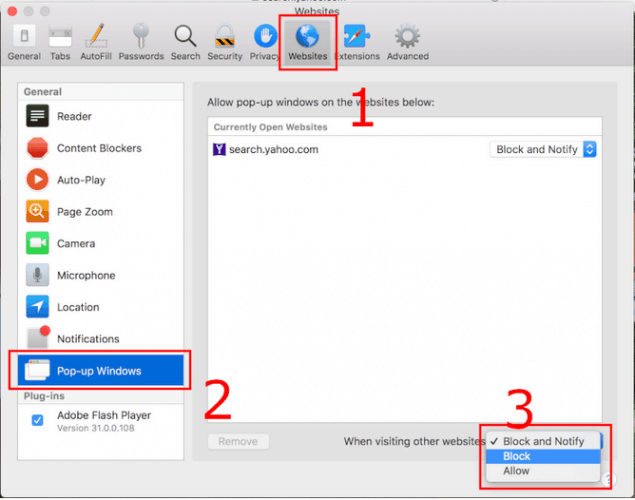
For Safari 12
- Select “Safari” > “Preferences“, then select on “Websites” at the top of the window.
- Select “Pop-up Windows” on the left side.
- Use the “When visiting other websites” drop-down menu to one of the following:
- Block and Notify
- Block
- Allow
Internet Explorer 11
To turn Pop-up Blocker on or off.
- Open Internet Explorer, select the Tools button, and then select Internet options.
- On the Privacy tab, under Pop-up Blocker, select or clear the Turn on Pop-up Blocker check box, and then select OK.
Google Chrome
In Google Chrome, pop-up blocking is enabled by default.
To disable the Google Chrome pop-up blocker:
- Click the Google Chrome wrench icon to access browser settings.
- Select ‘Options’ to open the Options dialog box.
- Click Under the Hood.
- Click Content settings.
- In the Pop-ups section, check the Do not allow any site to show pop-ups (recommended) radio button and then click the Manage Exceptions…
- Add the location of your BMC FootPrints Service Core instance or instances to the Pop-up Blocker exception list (either the Distinguished Name or the IP address will work) in the Add a new exception pattern field.
- Make sure Allow is selected from the Action drop-down list.
- Press the Enter key.
- Close the Content Settings tab to exit the Options The task is complete.
Firefox
In Firefox, pop-up blocking is enabled by default.
- Select Tools–>Options. The Options window is displayed.
- Click on Privacy & Security on the left hand side.
- Scroll down the page to Permissions.
- Go down to Block Pop-up window and click on the Exceptions… box.
- Add the site you want to allow pop-ups by typing in the URL (https://eprotocol.bellberry.com.au) in the box under ‘Address of website:’ and then clicking Allow.
- Click Close. The Allowed Sites window closes.
- Click OK. The Options window closes and this task is complete.
I am trying to respond to HREC comments, but it appears as if there are none.
You might be confusing the HREC Return Notes item in the left-hand side of the application form with the HREC comments page, which is used during the official review cycle. If you are attempting to access comments from the HREC for an application that has already been assigned to a meeting date, please see the instructions on how to respond to HREC comments. If your application was returned, please see the Return Notes on the left-hand navigation which will explain what you need to do before returning your application.
I received an error stating “Session expired.”
Your application was left idle for longer than 60 minutes and has timed out. Close all of your browser windows and log back in to eProtocol.
I select “Start Amendment” and click OK, but am brought back to the page where I started.
You have pop-up blocking software on in your browser. Even if you believe you have allowed pop-ups, there may be additional toolbars, etc. that are blocking your pop-ups. See instructions for additional information.
The option to “Start Amendment” or “Ethics Approval Extension” is not available; it appears grey.
- An amendment or Ethics Approval Extension (renewal) may have already been started or is in-process for this application. Check on your HOME page in the Applications (In-Preparation/Submitted) section to see if the application is listed there.
I can’t find the application I need to amend
If you do not see an application listed in your Applications (Approved) section, it may be that you were not listed as personnel on the study. You will need to get one of the nominated contacts to add you to the application.
I can’t see my approved applications.
Your approved applications appear on your eProtocol HOME page (the page you see when you first log in) in the section labelled Applications (Approved). It should appear towards the middle of your page. You may need to click the at the right-side of the section header to expand this section.
I click on EDIT but the application does not open.
You have pop-up blocking software on in your browser. Even if you believe you have allowed pop-ups, there may be additional toolbars, etc. that are blocking your pop-ups. See this page for further information.
What if I have a concern about how my study has been managed?
If you have a concern about the review process, a committee decision, or how your study has been handled, Bellberry has a formal complaints process. See Complaints for information on how to raise a concern and what happens next.
How long does the review process take?
Our typical turnaround is around 21 working days from submission to decision. Meetings are usually held weekly on Wednesdays, with the committee’s decision and any comments communicated via eProtocol within two business days following the meeting.
For more information, refer to Submission requirements and responsibilities.