Archives: <span>FAQs</span>
Home> Approved applications> Application ID> Progress report
A pop-up window will open. Within this window select ‘progress report’ and click OK
If a progress report form does not open when you click OK, then you have pop-up blocking software on in your browser. Even if you believe you have allowed pop-ups, there may be additional toolbars, that are blocking your pop-ups.
Alternatively, if this option is still not available, then an amendment submission may be active. Check the ‘Applications (In-preparation/Submitted)’ section to see if the study is listed there. Please note that once the submission of an amendment has occurred, you will not be able to start a progress report application until the amendment has been reviewed and approved. If the ethics expiration date is near, please complete a progress report before creating an amendment. Once processed, you will then be able to submit an amendment
Please attach any documents at the bottom of the form.
Once completed click SUBMIT FORM
Home> Approved applications> Application ID> Protocol violation
A pop-up window will open. Within this window select ‘protocol violation’ and click OK
If a protocol violation form does not open when you click OK, then you have pop-up blocking software on in your browser. Even if you believe you have allowed pop-ups, there may be additional toolbars, that are blocking your pop-ups.
Please attach any documents at the bottom of the form
Once completed click SUBMIT FORM
Creating an adverse event/safety report form
Home> Approved applications> Application ID> Start adverse event/safety report form
A pop-up window will open. Within this window select ‘adverse event/safety reporting’ and click OK
If an adverse event/safety report form does not open when you click OK, then you have pop-up blocking software on in your browser. Even if you believe you have allowed pop-ups, there may be additional toolbars, that are blocking your pop-ups.
On the form select either:
- Individual Event
OR
- Summary Report
For an Individual Event, select section 1 and complete the report as required. Ensure that all questions are answered including the details of the event and attach relevant documents.
For Summary reporting, select 2 and attach relevant documents.
Once completed click SUBMIT FORM
Creating an amendment
Home> Approved applications> Application ID> Amendment
A pop-up window will open. Within this window select ‘start amendment’ and click OK
If an amendment form does not open when you click OK, then you have pop-up blocking software on in your browser. Even if you believe you have allowed pop-ups, there may be additional toolbars, that are blocking your pop-ups.
Alternatively, if this option is still not available, then an amendment or a progress report/ submission may be active. Check the ‘Applications (In-preparation/Submitted)’ section to see if the study is listed there. Please note that once the submission of an amendment has occurred, you will not be able to start a progress report application until the amendment has been reviewed and approved. If the ethics expiration date is near, please complete a progress report before creating an amendment. Once processed, you will then be able to submit an amendment.
Please attach documents at the bottom of the amendment form.
Once completed click SUBMIT FORM
Click here for the post meeting process
You can generate an Adobe pdf file of your application form that can be printed or saved on your computer.
- In the left-hand menu of the application form, click on the Print View option
A small window will open:
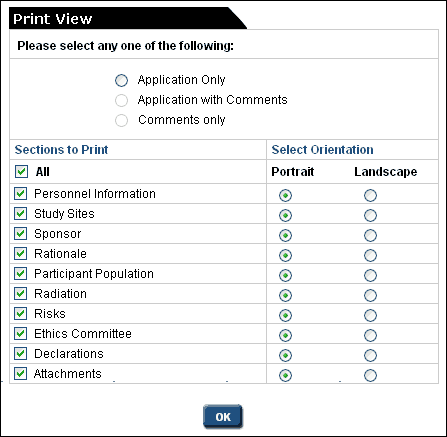
- Select an option, sections and their orientation, and click OK
- The Adobe pdf file will be created and will open automatically
- You may save it to your computer by clicking File, then Save as located in the upper left-hand corner of the window
If you are having difficulty with this function your Windows software may be blocking it. If this is the case, please go to the application page and use the keyboard short cut ‘Ctrl P’ to print individual pages.
Returned Applications
Sometimes it is necessary to return an application. Return advice will be communicated by email to the contacts on the application. The ‘Application Status’ displayed on your home page will be changed to ‘Submission Returned’.
If you receive an email advising that your application was returned:
- Open the application and click on ‘Return Notes’ in the left-hand menu to view the comments.
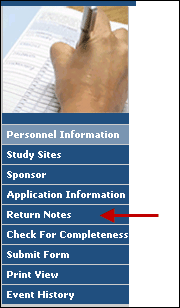
This will open a window with information regarding the reason your application was returned and instructions on how to proceed.
Make the necessary changes and additions to the application and attachments. Please note that to make changes to the application you will need to open it in ‘Edit’ mode.
When the application is ready to be resubmitted, click the SUBMIT FORM button.
The HREC Return Notes area is used only for instructions from Bellberry relating to returned applications. The Investigator/Contact cannot add text or respond to a Return Note.
Click here for complete guidance on creating and submitting applications
The Organisational verification of personnel form is to be used to verify an individual and their affiliation with the organisation/site with which they wish to register. All new registrations must complete and submit this form. This form can be found in BA G2 Registration Guidance.
The first step of creating an application is to apply for a User ID and password. For assistance with your registration please view the ‘How to Register’ video tutorial on our website.
Verifying new registrations
Bellberry is committed to maintaining and upholding excellence in privacy and security for all those who use our service, including all who register and use the eProtocol system. To further strengthen the security of the registration process, all new applicants will be required to complete the organisational verification of personnel form (Registrations Guidance BA G2) . This form provides information that allows Bellberry to efficiently and effectively process new applications, while maintaining appropriate security of data.
Authorised representatives
Each organisation must have a dedicated person(s) that assumes responsibility for the authorisation of new personnel registering for eProtocol access from that organisation. The authorised representative should be known by staff as they will need to verify the applicant as part of the registration process.
Larger organisations may choose to delegate this role to a departmental level, e.g. a hospital may select the Clinical Trials Manager in each department. For stand-alone clinics, it may be the practice manager or Principal Investigator. The organisation is responsible for determining the person responsible and declaring this person to Bellberry. Bellberry will maintain a list of authorised representatives, and each new registration for that organisation will be verified with the nominated representative.
New organisations
New organisations registering with Bellberry will be required to provide additional information, including full address, phone number and ABN. This information is to be included within the relevant sections of the organisational verification of personnel form Registrations Guidance (BA G2). Completed organisational verification of personnel forms should be emailed to registrations@bellberry.com.au.
Please do not use acronyms in the organisation field on the registration form. The organisation name and address that you enter will appear on all correspondence from Bellberry.
Please ensure that all people that will be involved in the study, i.e. the Principal Investigator, Co-Investigators and any other nominated contacts are all registered with the same organisation.
Working across multiple organisations
A researcher or nominated contact registering for multiple organisations will be required to register with a different user IDs for each organisation. We suggest using an identifier such as the organisation name and surname or initials.
Nominated Contacts
If authorised by a Principal Investigator, a nominated contact from another organisation, including sponsors, clinical research organisations (CROs), site management organisations (SMOs) etc., may prepare an application on behalf of the Principal Investigator. The nominated contact must be registered with the site at which the study is being conducted. Please note that this may be different from the organisation that the nominated contact is employed by.
User ID
It is suggested that sponsors, CROs and SMOs use their surname, initial and organisation name for the User ID, i.e. ‘SmithJ – organisation name’.
Please note that apostrophes cannot be used within a user ID.
Registering in eProtocol
As for all applicants, the authorised representative of the organisation (see definition above) must verify the nominated contact by signing the organisational verification of personnel form Registrations Guidance (BA G2). This form should be completed and emailed to registrations@bellberry.com.au for each separate organisation, prior to registration.
Following completion and submission of the organisational verification of personnel form, open the eProtocol homepage. Click register > complete registration form > user ID (select a username such as last name, first initial) > organisation name (must be the organisation that the user is to be linked to –
e.g. the PI’s organisation) > click submit.
The registration request will be processed by the Bellberry registrations team and a confirmation email acknowledging receipt of the registration request will be sent to the listed email address.
Once the registration has been processed, the user will receive an automated email from registrations@bellberry.com.au with temporary login details. When the new user accesses eProtocol for the first time, the system will generate a prompt to change the password. This link is time-sensitive and should be accessed as soon as possible.
Passwords are required to be a minimum of 8 characters with a minimum of 3 of the following:
- lowercase
- uppercase
- numbers
- symbols (!,@,#,$,%,^,&,* ).
eProtocol will generate automatic emails whenever a transaction between the site and the HREC occurs, e.g. when an application is submitted, comments are returned, and so on. All contacts listed on the personnel information page will receive these automated emails.
Recommended browser
eProtocol is compatible with most popular browsers. We recommend using the most recent version of the following web browsers:
- Firefox
- Edge
- Chrome
- Safari (if using a Mac)
Disabling Pop-ups
Pop-up blockers prevent the eProtocol application from opening certain windows.
You will need to make sure that your internet browser has all pop-up blockers disabled or pop-up windows allowed for the eProtocol website. You can usually find how to do this in the ‘Settings’ of your browser.
Overseas Access
If you are unable to access eProtocol and are outside Australia, please fill out the form here: LINK TO FORM
We will then contact you to arrange an alternative method of access.
Bellberry Education Weekend presentations
Thank you to the presenters from our May education weekend for making their presentations available to all our Committee Members. Please click on the heading above to view individual presentations.
- A history of research ethics committees: origins, history, membership and functions – Professor Colin Thomson
- Medical Imaging in Clinical Trials – Dr Martin Caon
- A guide to interpretation of the Investigator Brochure and Protocol – Professor Paul Rolan
- An overview of FDA, EMEA, MHW and TGA – Professor Paul Rolan
- Consent and the National Statement – Professor Colin Thomson
- Clinical Trials – Dr Nikolajs Zeps
- The interface between Ethics and Statistics in Clinical Trial Design – Dr Derek Chew
- Omega-3s for heart health and rheumatoid arthritis: Fish oil or snake oil? – Professor Michael James (available to be emailed on request)
- Biobanks/Databanks – Dr Nikolajs Zeps
- Member Responsibilities – Trina O’Donnell
As part of our commitment to ongoing training and development, we provide for a number of attendees at Ethics training sessions, conferences/seminars and networking events. We were pleased to sponsor several Members attendance at the Australasian Association of Bioethics and Health Law Conference, Monash Intensive Research Ethics Course, Australasian Ethics Network Conference and the Monash Intensive Bioethics Course in the later part of 2014.
Thank you to Simon Gill, Sid Baxi, Anne Ozdowska, June Challen and Casey Nottage for representing Bellberry and for providing a summary of the program elements that were of particular interest. Download reports here: 2014 Conference Feedback (7 downloads )
Member education weekend workshop May 2014 – McCracken Country Club, Victor Harbor
- Pharmacology and Drugs: The Basics – Dr Tom Polasek (12 downloads ) (click here for video)
- Pharmacology - Doug Francis (10 downloads ) (Click here for video)
- Respiratory Disease – Emeritus Professor Dick Ruffin AM (9 downloads ) (Click here for video)
- Biosimilar: Why not Biogeneric? – Dr Michael Ward (7 downloads ) (Click here for video)
- Consent research and the National Statement – Dr Bernadette Richards (6 downloads ) (Click here for video)
- TGA/PBAC – Professor Emeritus Lloyd Samson AO (1 download ) (Click here for video)
- Macular Degeneration – Dr Jim Runciman (1 download )
- Alzheimer's Disease - Associate Professor Mark Slee (1 download ) (Click here for video)
- Oncology – Associate Professor Dusan Kotasek (1 download ) (Click here for video)
- Stem Cells – Associate Professor Megan Munsie (1 download )
- CEO Update – Kylie Sproston (1 download ) (Click here for video)
- Education Project – Melanie Gentgall (1 download ) (Click here for video)
- Bellberry Items – Trina O’Donnell (1 download ) (Click here for video)
Social Media & Clinical Trials: The Good, Bad and the Ugly – Michelle Gallaher
Kids: Mum has signed up to be part of an Ebola vaccine clinical trial – Michelle Gallaher
Thursday 15th October
Michelle raised some very interesting issues which many people found thought provoking. We are currently developing guidelines for our HREC members regarding social media and clinical trials to clarify what is within the remit of the HREC.
Please see below video footage of the sessions, both with introductions from Kylie Sproston:
- Social Media & Clinical Trials: The Good, Bad and the Ugly
- Kids: Mum has signed up to be part of an Ebola vaccine clinical trial
Ethical and regulatory challenges generated by surgical innovation – Professor Wendy Rogers & Dr Bernadette Richards
Devices – Professor Guy Maddern
Thursday 30th April
Thank you to our guest speakers for a very informative evening and to Members, Staff and Directors who attended.
Please see below for video footage of the sessions, both with introductions from Kylie Sproston: