Archives: <span>FAQs</span>
Ionising Radiation
Standard clauses – ionising radiation
Standard imaging – definitions
Standard of care declaration- template
HREC reporting flow chart – radiation
Pregnancy and Sexual Health
Standard clauses – pregnancy & sexual health
Standard template – pregnancy/pregnant partner data release
Discussion of the BIAL/Biotrial Phase 1 trial in France
Dr Brian Creese, A/Prof Michael Wiese, A/Prof Mark Slee & Dr Michael James – Thursday 7 April 2016
Presentations by Brian Creese and Michael Wiese followed by panel Q&A session with Brian and Michael joined by Mark Slee and Michael James. Please see below video footage of the sessions, both with introductions from Kylie Sproston:
Withdrawal or Suspension of Ethical Approval
Site monitoring and desktop auditing
Amending Approved Research
Amendment Form (eProtocol application questions)
Amendment Pathways Flowchart
HREC notification template – change in PI
HREC notification template – change in CPI
Safety Reporting
Safety Reporting (eProtocol application questions)
Serious Breaches
Serious Breaches Report Form – Sponsor
Serious Breaches Report Form – Third Party
Serious Breaches (eProtocol questions – PVR)
Progress and Final Reports
Progress Report (eProtocol)
Final Report (eProtocol)
Batch submissions
Batch submission application
Review Pathways – Higher risk and Lower risk research
AI Research Guidance
Post marketing studies
Multi-stage Phase 1 in healthy volunteers
Extension studies
Taking over ethical oversight checklist
Psychedelic Drug Study considerations
Cannabis Study considerations
Application for Lower Risk Review
We recognise that the sector is enormously busy at present and expect that deadlines will come under pressure. Bellberry will be automatically extending ethics expiry dates to take into account the current situation.
Videos cannot be uploaded directly into an eProtocol application; however, they can be embedded into a document which can then be attached to page 7.
The document should be named as you want the video to appear on the approval letter.
To embed a video into MS Word, PowerPoint or Excel, please refer to the instructions below:
- On the Insert menu, click Object, and then click the Create from File tab
- Click Browse and locate the movie (video clip or sound wave) you want to insert
- Select Movie (video clip or sound wave)
- Click insert
- To play media clip, double-click its icon
- Save using the preferred file
Avoid using your browser’s BACK button
This will avoid taking you out of the system. Instead, use the menus and links within the application to navigate.
Save Frequently
eProtocol will time out after 60 minutes of inactivity. Only actions which cause the page to refresh or reload (such as saving or navigating to a new section) are indications to the system that your session is active.
Be patient
Some processes can take a short time to run. Although data is loading, your browser may not indicate activity.
Sign out when done
Always click “Sign Out” and shut down your browser completely (close all browser windows) when you are finished using eProtocol. This will not only help keep your information secure but will also release any edit locks you may have had on protocols and allow your colleagues on the project to open the protocols in edit mode.
Changing a Password
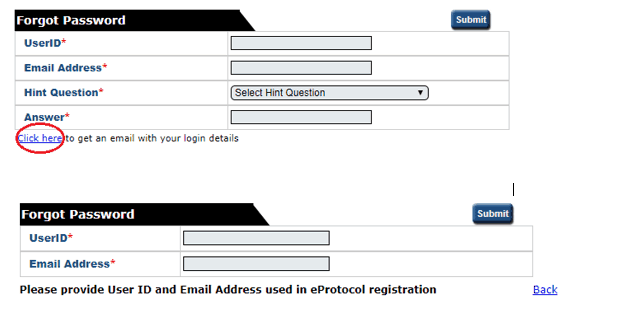
If you wish to change your password, click on the ‘Change Password’ button on the top right-hand corner of the Screen (next to the Sign Out button). Once on this page, if you cannot remember your hint question, follow the ‘click here’ link. This will take you to a second ‘forgot password’ page where you must enter your UserID and email address. Follow the steps outlined in the email generated by the system.
I can’t see my approved applications
Your approved applications will appear on your eProtocol home page (the page you see when you first log in) in the section labelled ‘applications (approved)’. This section should appear towards the middle of your page. You may need to click on the button located on the right-side of the section header to expand this section.
I can’t find the application I need to amend
Please refer to the instructions for ‘creating an amendment’ if you do not see an application listed in your applications (approved) section, it may be that you were not listed as personnel on the study.
The option to ‘Start Amendment’ is not available; it appears grey
You may not have EDIT access to this application. Select “open in view mode” and click on the left-hand menu option ‘personnel info’. Only those people listed in the first four roles (principal investigator, co-investigator, nominated contacts) have access to edit the study/application.
An amendment or progress report may have already been started or is in-process for this application. Check on your home page in the applications (in-preparation/submitted) section to see if the application is listed there.
I am trying to respond to HREC comments, but it appears as if there are none.
You might be confusing the HREC Return Notes item in the left-hand side of the application form with the HREC Comments page, which is used during the HRECs review cycle.
If you are attempting to access comments from the HREC for an application that has already been assigned to a meeting date, please see the ‘Post HREC meeting & application decision’ instructions on how to respond to HREC comments. If your application was returned, please see instructions for ‘Returned applications’.
Access to eProtocol
Once logged in to eProtocol, you will be able to create a new application, and to view and edit any applications on which you have been listed in the Personnel Information section. You will only have access to edit those studies/applications on which you are listed as either:
- Principal Investigator
- Co-Investigator
- Nominated Contact
If you are a new Co-Investigator or Nominated Contact for an existing study, you will need to ask one of the existing study personnel listed on the Personnel Information page of the Application to create and submit an Amendment in eProtocol to add your details. Following approval of that Amendment you will then have view and edit access for the specific study. Refer to the Amendments section of this guide for details about how to do this.
If you are added during a study, you will not be able to access previous versions of documents. The PI however will be able to (unless they have taken over from another PI).
Home> Approved applications> Application ID> Final report
A pop-up window will open. Within this window select ‘final report’ and click OK
If the final report form does not open when you click OK, then you have pop-up blocking software on in your browser. Even if you believe you have allowed pop-ups, there may be additional toolbars, that are blocking your pop-ups.
Once this form is acknowledged by the Committee the study will be closed in eProtocol, and no further submissions can be made. The application will be able to be viewed in the Non-Active Applications section on the home page
Once completed click SUBMIT FORM