Archives: <span>FAQs</span>
A form of research designed to find out the effects of an intervention, including a treatment or diagnostic procedure.
Close genetic relatives.
Any undesirable clinical occurrence in a subject, whether it is considered to be device-related or not, that includes a clinical sign, symptom or condition and/or an observation of an unintended technical performance or performance outcome of the device.
Any noxious and unintended response to an unapproved medicinal product, related to any dose. The phrase “response to an unapproved medicinal product” means that a causal relationship between the product and an adverse event is at least a reasonable possibility, i.e. the relationship cannot be ruled out. (‘Unapproved medicinal product’ here includes approved products used at levels or in ways that are unapproved)
or
A noxious and unintended response to a drug that occurs at doses of marketed medical products normally used in humans for prophylaxis, diagnosis or therapy of diseases or for modification of physiological function.
A clinical sign, symptom or condition that is causally related to the device implantation procedure, The presence of the device, or the performance of the device system.
- Click on Safari on the upper left of your screen to open the drop down options and choose Preferences. 1. Make sure “Block Pop-Up Windows is unchecked as in the image above. Then click Preferences.
- From the menu, choose Security.
- Make sure Block pop-up windows is NOT selected. If it is selected, click it to deselect.
For Safari 12
- Select “Safari” > “Preferences“, then select on “Websites” at the top of the window.
- Select “Pop-up Windows” on the left side.
- Use the “When visiting other websites” drop-down menu to one of the following:
- Block and Notify
- Block
- Allow
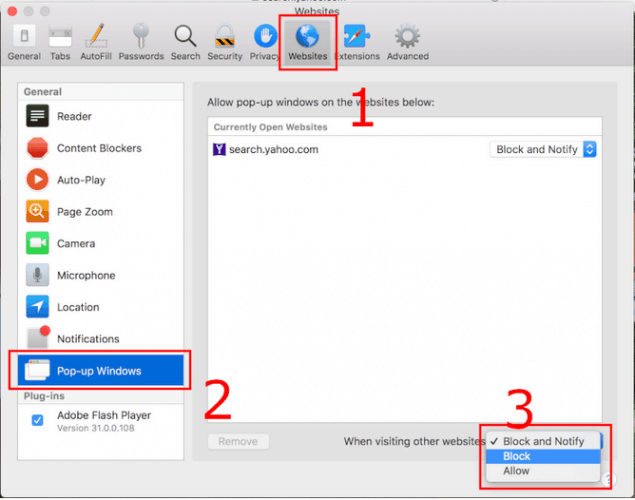
To turn Pop-up Blocker on or off.
- Open Internet Explorer, select the Tools button, and then select Internet options.
- On the Privacy tab, under Pop-up Blocker, select or clear the Turn on Pop-up Blocker check box, and then select OK.
In Google Chrome, pop-up blocking is enabled by default.
To disable the Google Chrome pop-up blocker:
- Click the Google Chrome wrench icon to access browser settings.
- Select ‘Options’ to open the Options dialog box.
- Click Under the Hood.
- Click Content settings.
- In the Pop-ups section, check the Do not allow any site to show pop-ups (recommended) radio button and then click the Manage Exceptions…
- Add the location of your BMC FootPrints Service Core instance or instances to the Pop-up Blocker exception list (either the Distinguished Name or the IP address will work) in the Add a new exception pattern field.
- Make sure Allow is selected from the Action drop-down list.
- Press the Enter key.
- Close the Content Settings tab to exit the Options The task is complete.
In Firefox, pop-up blocking is enabled by default.
- Select Tools–>Options. The Options window is displayed.
- Click on Privacy & Security on the left hand side.
- Scroll down the page to Permissions.
- Go down to Block Pop-up window and click on the Exceptions… box.
- Add the site you want to allow pop-ups by typing in the URL (https://eprotocol.bellberry.com.au) in the box under ‘Address of website:’ and then clicking Allow.
- Click Close. The Allowed Sites window closes.
- Click OK. The Options window closes and this task is complete.
You might be confusing the HREC Return Notes item in the left-hand side of the application form with the HREC comments page, which is used during the official review cycle. If you are attempting to access comments from the HREC for an application that has already been assigned to a meeting date, please see the instructions on how to respond to HREC comments. If your application was returned, please see the Return Notes on the left-hand navigation which will explain what you need to do before returning your application.
Your application was left idle for longer than 60 minutes and has timed out. Close all of your browser windows and log back in to eProtocol.
You have pop-up blocking software on in your browser. Even if you believe you have allowed pop-ups, there may be additional toolbars, etc. that are blocking your pop-ups. See instructions for additional information.
- An amendment or Ethics Approval Extension (renewal) may have already been started or is in-process for this application. Check on your HOME page in the Applications (In-Preparation/Submitted) section to see if the application is listed there.
If you do not see an application listed in your Applications (Approved) section, it may be that you were not listed as personnel on the study. You will need to get one of the nominated contacts to add you to the application.
Your approved applications appear on your eProtocol HOME page (the page you see when you first log in) in the section labelled Applications (Approved). It should appear towards the middle of your page. You may need to click the at the right-side of the section header to expand this section.